Getting Started
Download a release and start the wizard. For commands, use the quick reference.
Back to documentation index.
Already use ysoserial.net? Read Moving from ysoserial.net for command compatibility and script changes.
Installation
Section titled “Installation”Release ZIP (recommended)
Section titled “Release ZIP (recommended)”Windows and .NET Framework 4.7.2 or newer 4.x are required.
-
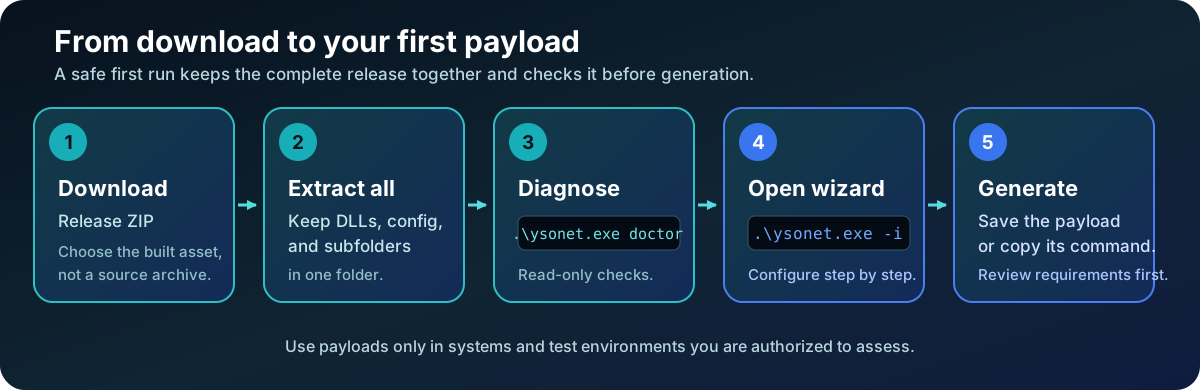
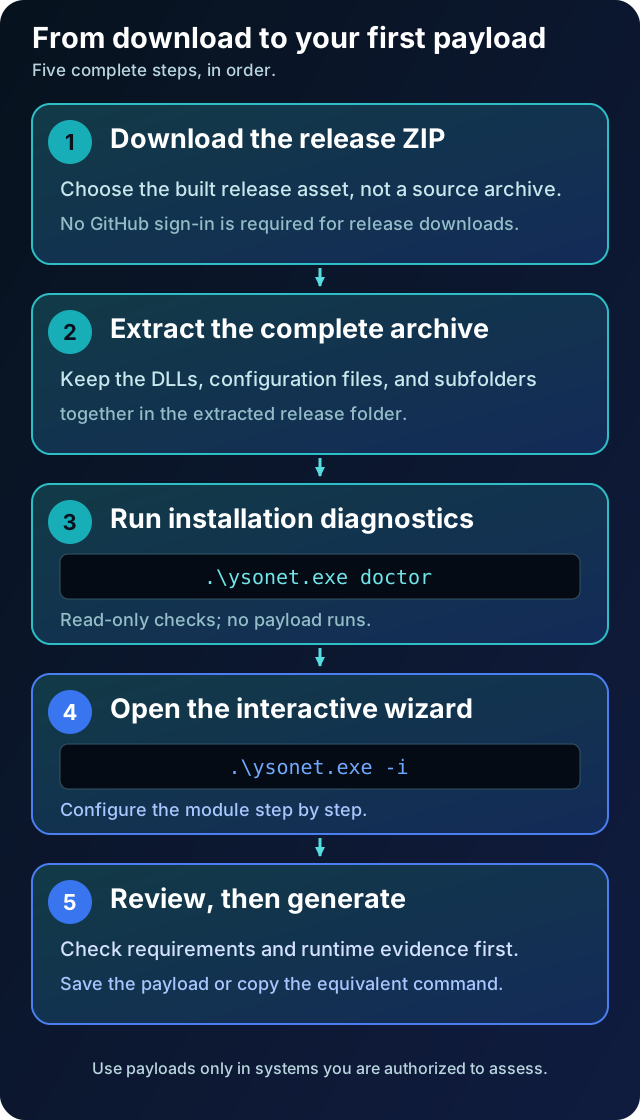
Extract the whole archive. Keep the DLLs, configuration files, and subfolders together.
-
Open PowerShell in that folder and start the wizard:
Terminal window .\ysonet.exe -i
Under Assets, choose ysonet-<version>.zip; the Source code archives are
not ready-to-run builds. Release downloads do not require GitHub sign-in.
The release provides checksums and signed build provenance
and a runtime evidence matrix. Read the
dependency security notes for intentionally pinned research libraries.
.NET Framework 4.8 and 4.8.1 work too. Running a release does not require Visual Studio or MSBuild. These are YSoNet's requirements; payload targets have separate requirements in module help. On Linux or macOS, use the Windows VM or WSL workflow.
For command-line help, run .\ysonet.exe -h from the same folder.
Older versions are on the YSoNet releases page.
The release includes an AI assistant skill at .claude/skills/ysonet-payloads/
for CLI usage and module selection. Open the extracted folder in Claude Code,
or import that directory into another client that supports Agent Skills.
For source-based research, see Research with the archive.
Installation diagnostics
Section titled “Installation diagnostics”Run .\ysonet.exe doctor for a read-only installation report. It shows the tool
version, installed generator framework and CLR, process architecture, required
DLL/config files, optional test hosts and completion profile configuration.
Missing files include recovery instructions. It can diagnose missing third-party
DLLs before the normal CLI parser starts.
Exit 0 means the required installation checks passed; exit 1 means a required check failed or could not establish the requirement; exit 2 means invalid doctor arguments. Optional hosts and completion do not affect that result. File checks establish readability and managed metadata, not integrity or successful loading. Host launch, active completion sessions and target application compatibility stay unverified. No files, profiles, execution policy or machine settings are changed, and no payload or test host runs. If Windows cannot start the executable at all, install/repair .NET Framework 4.7.2 or newer first, then retry.
Development builds (optional)
Section titled “Development builds (optional)”Use a development build when you need changes that have not reached a release yet.
- Sign in to GitHub and open CI Build. Choose a successful run for the branch and commit you intend to try.
- In that run's Artifacts section, download
ysonet-<commit>. Artifact downloads require sign-in and expire. - Extract the whole archive and run
.\ysonet.exe -ias above.
These are development snapshots, not published releases. You can also build from source.
Interactive mode (beta) - the easy way to start
Section titled “Interactive mode (beta) - the easy way to start”Choose a gadget or plugin, fill in its settings, and generate a payload. The wizard explains each setting, marks required values, and remembers your last command.
Launch it by passing interactive (or -i) as the first argument:
.\ysonet.exe interactivewizard and --interactive work too. Run the command from the extracted folder.
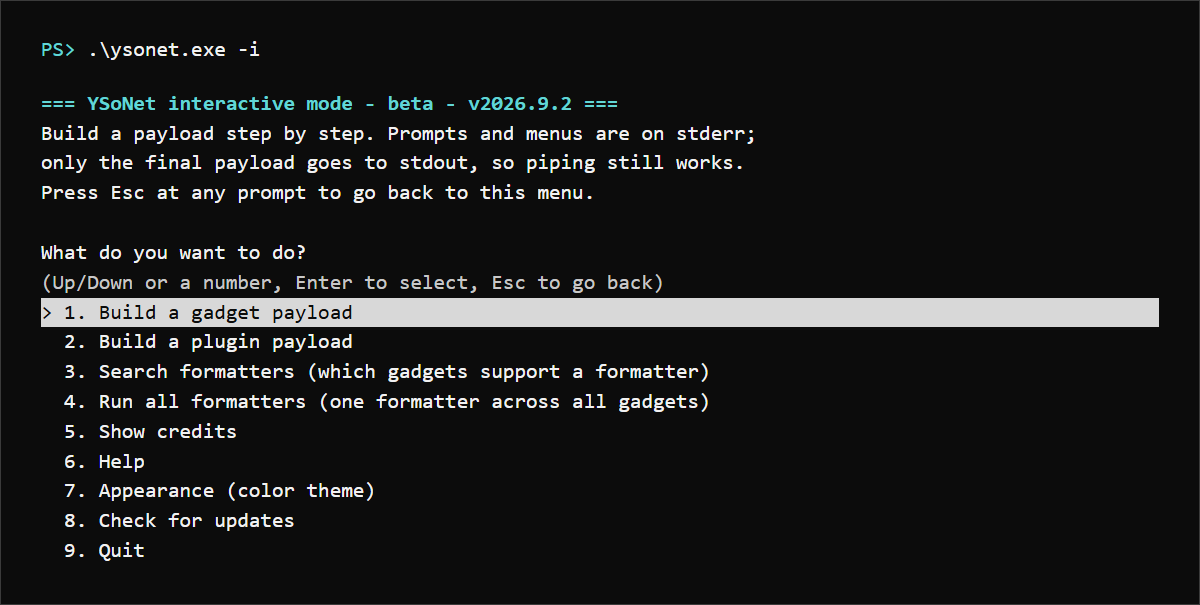
The interactive start screen groups building, discovery, help, and appearance tools.
This is actual output captured from .\ysonet.exe -i in v2026.9.2; only the
machine-specific terminal frame was cropped:
Inside the wizard:
- Type to filter the gadget / plugin / setting lists. Arrow keys,
Home/EndandPageUp/PageDownmove;Enteropens. - Each setting shows its current value and a short description; press
?for the full help. - Required settings are marked with
*; action buttons look like[ Generate ]and sit at the bottom. - Choose
[ Generate ]to build the payload, or[ Show ysonet command ]to see the equivalent command for scripts.
If your terminal is very narrow or output is redirected, it falls back to a simple type-to-filter form with the same settings. The one-shot command line remains available for scripts; check the migration guide when adapting ysoserial.net commands.
Build from source
Section titled “Build from source”See Building and testing for the Windows toolchain and build commands. To omit the research archive from your checkout, use the lightweight source workflow.
Testing
Section titled “Testing”See Building and testing for NORMAL/FULL tests, validation limits, and how to watch a run.
Watching a run
Section titled “Watching a run”See test-run status and isolation.
v2 branch
Section titled “v2 branch”For most .NET Framework 2.0, 3.0 and 3.5 targets, use the current YSoNet release
instead of the historical v2 branch. Run ysonet.exe on a supported .NET
Framework 4.7.2+ machine and add --legacyfx for a gadget or plugin that declares
CLR v2 support. Release ZIPs also include an isolated CLR2 host for supported local
tests through --testclr2 or --test --legacyfx.
Compatibility is measured per gadget, plugin and formatter; rewriting assembly
identities alone cannot make a CLR4-only object graph run on CLR2. Check the
selected module's help for its Runtime versions evidence and see
CLR v2 targeting.
The older v2 branch notes remain relevant when
the generator itself must run under CLR2 or when reproducing the historical tool.